
- Start by selecting the filter option at the top right of your home page
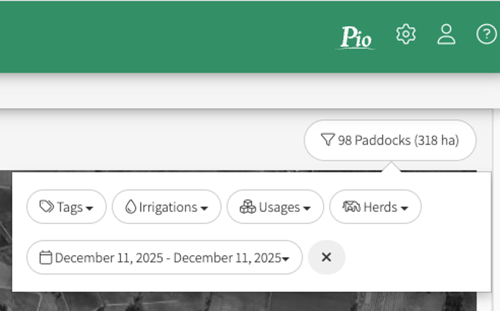
- Choose from one or more of the filter Options
- Tags
- Irrigation
- Usages
- Herds
- Date Range
- The Map, List and Feed Wedge will then reflect your Filter Selections
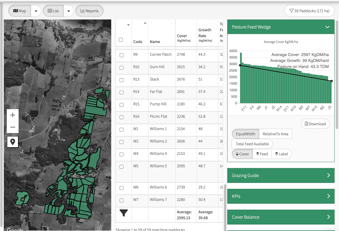

Whole Farm With Tag Filter
Filter Options
1. Filter By Tag
Tags can be created for any purpose - run-off areas, hillside paddocks, different farm blocks and management zones.
You can select multiple options from the drop down box.
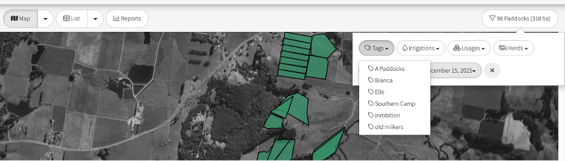
To create a Tag, follow this link Creating Tags
2. Filter by Irrigation
Assigning the correct Irrigation type to each paddock helps Pio calculate pasture growth more accurately.
You can select one or more irrigation types from the dropdown list to compare performance across systems.
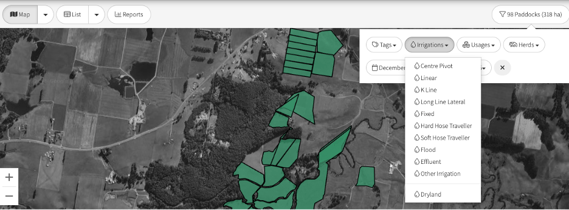
To set Irrigation types to your paddocks, follow this link Irrigation - Setting it up as Land Type
3. Filter by Usages
This option highlights paddocks based on how they are set to be used (for example, grazing, silage, or other purposes).You can select multiple usage types from the dropdown list.
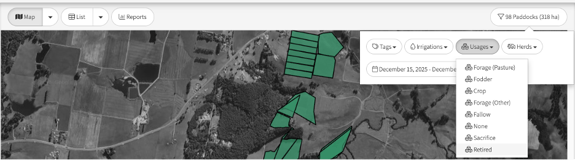
To set the 'Used For’ option on your paddocks, view this video article Setting the "Used For' on a Paddock
4. Filter by Herds
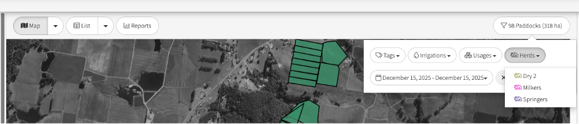
To allocate herds to your paddocks, follow this link Assigning Herds to Paddocks
5. Filter by Date Range
The date range option is a useful tool for viewing information within a selected time frame. By default, the filter shows totals for the current date, but it can be extended to cover longer periods of time. This is useful for analysing trends, reviewing historical performance, or comparing timeframes.

Using filters helps tailor Pio’s views to your farm system, making reports clearer, comparisons easier, and decisions more informed.